
How to Schedule Recurring WhatsApp Messages (Daily, Weekly, Monthly)
Some messages you only need to send once. Others — your weekly check-in with a client, your monthly invoice reminder, your daily standup ping to the team — repeat on a schedule. Sending these by hand wastes time and you’ll forget eventually. Setting them up to recur once means they happen forever without you thinking about it.
Here’s how to schedule recurring WhatsApp messages in 2026.
What kinds of messages benefit most from recurring schedules?
The five categories where recurring WhatsApp messages save the most time:
- Client check-ins. “Hi [Name], hope your week is going well — anything I can help with?” Sent every Monday morning to your top 10 clients keeps relationships warm without you remembering.
- Invoice and payment reminders. Monthly on the 1st: “Hi [Name], just a heads up — your invoice for [amount] is due on the 15th. Let me know if there are any issues.” Reduces late payments without awkward chasing.
- Birthday and anniversary messages. Annual on the right date. Pair this with our guide on How to Never Miss a Birthday on WhatsApp.
- Team standups and check-ins. “Standup at 9:30 — please share your three updates” sent every weekday morning to a small team WhatsApp group.
- Recurring service reminders. “Hi [Name], it’s been 3 months since your last cleaning — want to book?” sent quarterly to dental or salon clients.
How to schedule a recurring WhatsApp message
WhatsApp itself doesn’t have a recurring message feature. You’ll need a scheduling app. With Chatmaid Schedule, it works like this:
- Open the app and tap + to create a new message.
- Pick the recipient (contact or unsaved number) and write the message.
- Set the first send time.
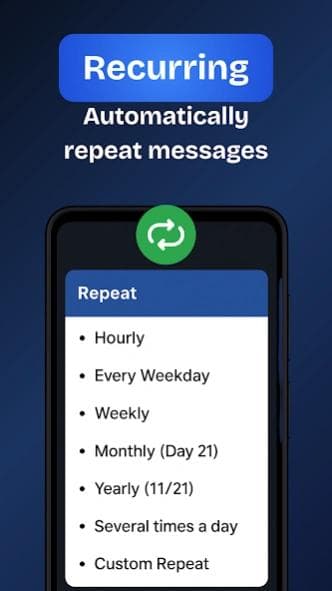
- Tap Repeat and choose:
- Daily — same time every day
- Weekly — same time on chosen day(s) of the week
- Monthly — same date every month
- Yearly — same date every year (great for birthdays)
- Custom — every X days, weekdays only, etc.
- Set an end date if you want, or leave it as ongoing.
- Tap Schedule.
The message is queued to send automatically every time the schedule fires. You can edit, pause, or cancel the recurring schedule at any time.
Recurring message templates worth stealing
Weekly client check-in (every Monday at 9 AM):
Hi [Name], hope your week is starting well. Anything on your plate I can help with this week? — [Your name]
Monthly invoice reminder (1st of every month):
Hi [Name], heads up — your monthly invoice will be sent on the 5th, due on the 15th. Reply if you have any questions. — [Your name]
Quarterly check-in for past customers (every 3 months):
Hi [Name], it’s been a few months — wanted to see how everything’s going on your end. If anything changes or you’d like to chat about [service], I’m here. — [Your name]
Daily team standup (every weekday at 9:25 AM):
Standup in 5 — please share: 1) what you’re working on today, 2) any blockers, 3) where you need help.
Yearly birthday wish (recipient’s birthday):
Happy birthday, [Name]! Hope you have a great day. — [Your name]
What to watch out for with recurring messages
A few things to keep in mind:
- Don’t be annoying. A weekly “hi, anything I can help with?” message becomes spam by message four if the recipient doesn’t actually need anything. Use recurring messages where they add value, not as a substitute for actually being interesting.
- Edit when life changes. If your client wraps up their project or switches jobs, cancel the recurring schedule. Otherwise it’ll send “hope your week is going well” to someone who’s been gone for six months.
- Test the cadence. Daily messages are too much for most use cases. Weekly is the sweet spot for most professional check-ins. Monthly is right for invoices and quarterly check-ins.
- Personalize over time. A recurring message that’s word-for-word identical for years feels robotic. Edit the template every few months — change the question, change the opener — so each message feels fresh.
Start automating your recurring WhatsApp messages
Download Chatmaid Schedule and set up your first recurring message in under a minute. The 7-day free trial covers every feature.